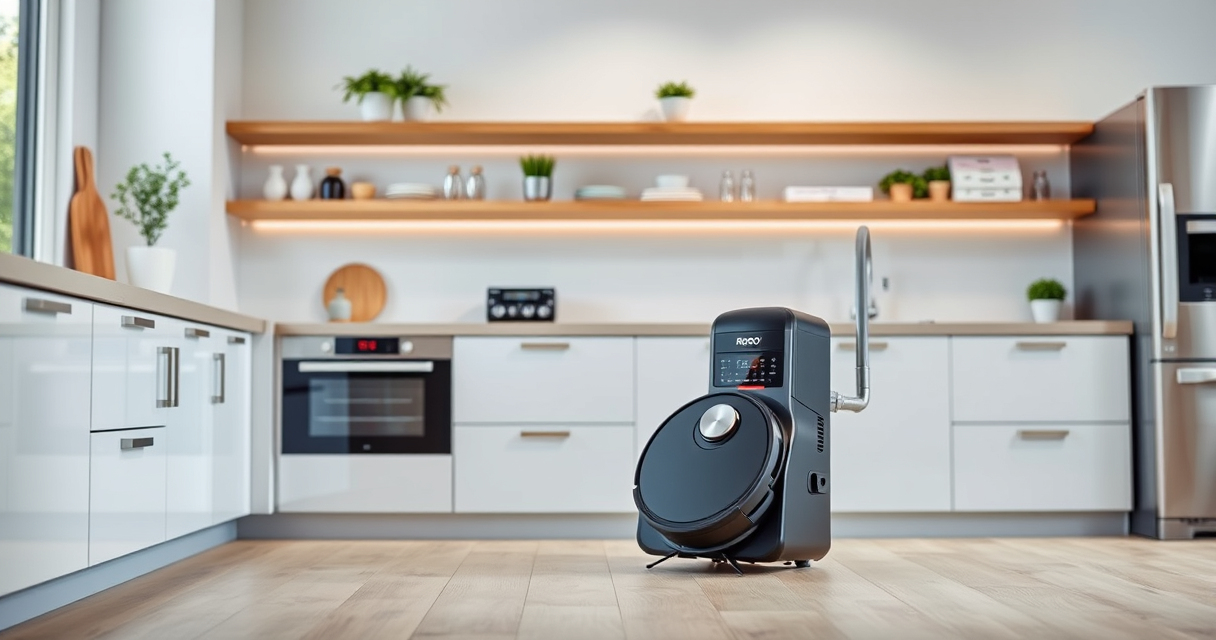

If your Roborock Q7 M5+ robot vacuum isn’t connecting to WiFi, it can disrupt your cleaning routine and app control. This guide provides clear, safe steps to troubleshoot and fix WiFi issues, ensuring your device stays connected and performs optimally.
Before starting, make sure your WiFi network is working properly, and your smartphone has the latest version of the Roborock app installed. Patience and systematic troubleshooting will help you restore your vacuum’s connection efficiently.
Key Takeaways
| Check WiFi compatibility | Ensure your WiFi network is 2.4GHz, as Roborock devices may not support 5GHz bands. |
| Restart devices | Power cycle the vacuum, router, and your phone to resolve minor glitches. |
| Reinstall the app | Update or reinstall the Roborock app to fix potential software issues. |
| Reset WiFi settings | Reset the vacuum’s WiFi settings if persistent issues occur. |
Amazon Product B0DWX69JVG
As an affiliate, we earn on qualifying purchases.
Verify Your WiFi Network
- Ensure your router is broadcasting a 2.4GHz network, as Roborock vacuums typically do not connect to 5GHz bands.
- Check that your WiFi signal is strong in the area where the vacuum is located.
- Temporarily disable other network devices that may cause interference.
Amazon Product B0DK99HTQ7
As an affiliate, we earn on qualifying purchases.
Restart Your Devices
- Power off your Roborock vacuum and unplug it from charging if connected.
- Restart your WiFi router by turning it off, waiting 30 seconds, then turning it back on.
- Close and reopen the Roborock app on your smartphone.
Reset WiFi Settings on the Vacuum
- Press and hold the power button on your vacuum for about 5 seconds until the WiFi indicator blinks, indicating reset mode.
- Open the Roborock app and follow the prompts to reconnect the device to WiFi.
Reconfigure WiFi Connection
- In the Roborock app, select your device and choose ‘Reconnect WiFi’.
- Follow the in-app instructions to connect to your 2.4GHz network, ensuring you select the correct network name and enter the password accurately.
- If connection fails, try moving the vacuum closer to the router during setup.
Update Firmware and App
- Check for firmware updates in the Roborock app and install any available updates.
- Ensure your app is the latest version from your app store.
- Reattempt WiFi connection after updating.
The Products in This Guide

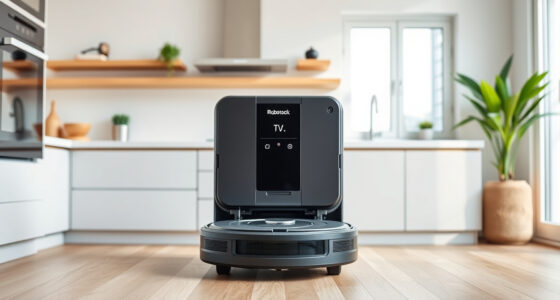
roborock Q7 M5+ Robot Vacuum and Mop
- ✔ Model: Q7 M5+
- ✔ Connectivity: WiFi
- ✔ Dimensions: Not specified

4 Pack Washable Filter
- ✔ Type: HEPA washable
- ✔ Pack: 4-pack
- ✔ Compatibility: Multiple Roborock models
roborock Q7 M5+ Robot Vacuum and Mop
The Roborock Q7 M5+ Robot Vacuum and Mop offers powerful suction and advanced navigation, making it a top choice for pet owners and busy households. Its self-emptying feature reduces maintenance, keeping your home spotless effortlessly.
Pros:
- Powerful 10,000Pa suction
- Up to 9 weeks of self-emptying
- PreciSense LiDAR navigation
- App control for convenience
Cons:
- Higher price point
- WiFi setup can be tricky
- Requires stable 2.4GHz network
Best for: Pet owners and homes requiring frequent, thorough cleaning with minimal maintenance
Not ideal for: Users with unreliable WiFi or who prefer simpler robot models
Bottom line: A high-performance robot vacuum ideal for pet-friendly, large homes.
4 Pack Washable Filter
This 4-pack of washable filters is compatible with the Roborock Q7 M5+ and other models. It helps maintain optimal suction and air quality, making filter replacements more economical.
Pros:
- Cost-effective 4-pack
- Easy to clean and reuse
- Maintains filtration efficiency
- Compatible with multiple models
Cons:
- Requires regular washing
- Not OEM, but performs similarly
Best for: Prolonging filter lifespan and reducing replacement costs
Not ideal for: Users seeking OEM-certified filters only
Bottom line: A practical, cost-effective filter upgrade for your Roborock vacuum.
Frequently Asked Questions
Why won’t my Roborock connect to WiFi?
Common reasons include incorrect WiFi band (prefer 2.4GHz), weak signal, outdated app, or device reset needed. Follow the troubleshooting steps to resolve.
Can I use 5GHz WiFi with my Roborock?
Most Roborock models, including the Q7 M5+, are designed to connect to 2.4GHz networks. Check your router settings to ensure compatibility.
How do I reset my Roborock’s WiFi settings?
Press and hold the power button for about 5 seconds until the WiFi indicator blinks, indicating a reset. Then, reconnect via the app.
What should I do if reconnecting doesn’t work?
Try restarting your devices, moving the vacuum closer to the router, and updating the firmware and app. If issues persist, contact support.
Getting Your Roborock Back Online
WiFi connection issues can be frustrating, but with systematic troubleshooting, you can restore your Roborock Q7 M5+’s connectivity. Ensuring your network settings are compatible and performing device resets often resolves the problem quickly. Regular updates and proper placement help maintain a stable connection, keeping your home clean effortlessly.
Affiliate disclosure: As an Amazon Associate we earn from qualifying purchases. Prices and availability are accurate as of the time of publishing.